Email::contact@vetrixtv.com Whatsapp:+212708830116


How QoS and Ethernet Improve IPTV Streaming Performance in 4K?
Learn how QoS and Ethernet optimize IPTV streaming by reducing buffering, prioritizing live traffic, and delivering smoother 4K and sports playback
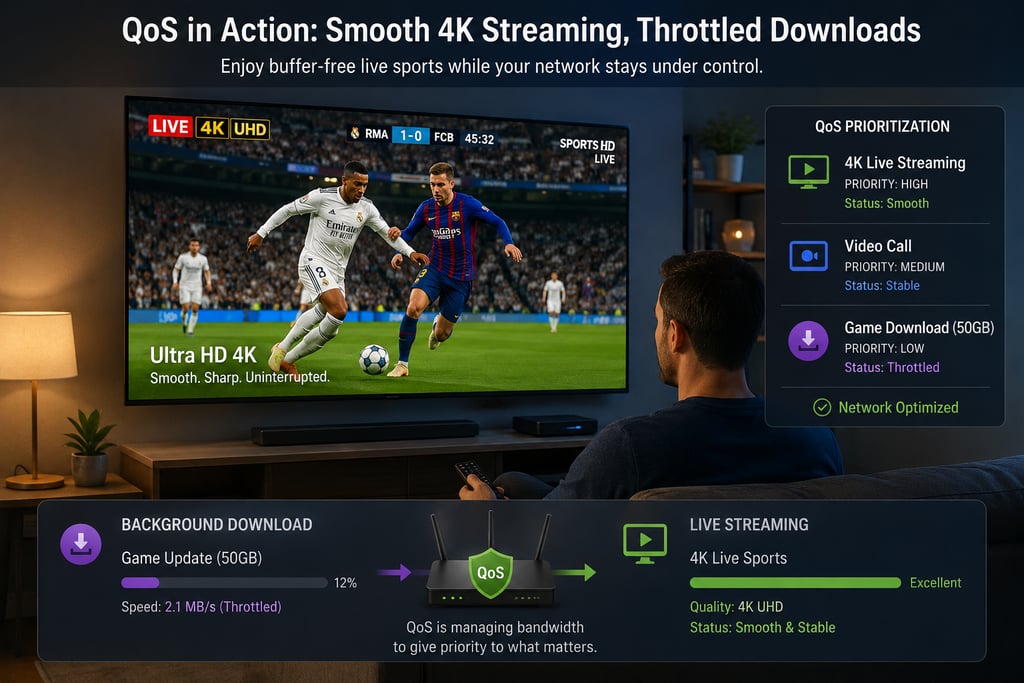
How QoS and Ethernet Improve IPTV Streaming Performance for 4K and Live Sports
Streaming IPTV in 4K, watching live sports, or enjoying premium video-on-demand content should feel seamless. Yet even users with fast internet connections often experience buffering, quality drops, freezing, or lag during live broadcasts. In many cases, the problem is not the internet plan itself — it is the way the home network handles traffic.
Two of the most effective ways to improve IPTV performance are using Ethernet instead of Wi-Fi and enabling Quality of Service (QoS) on your router. Ethernet provides a more stable physical connection between your router and your streaming device, while QoS ensures that bandwidth is allocated intelligently when multiple devices compete for network resources.
Together, these two optimizations can dramatically improve the quality of 4K IPTV streaming, live sports broadcasts, and high-bitrate channels, especially in homes where gaming, downloads, video calls, and mobile browsing all happen at the same time.
In this guide, we’ll break down what QoS is, how it works, why Ethernet still outperforms Wi-Fi for IPTV, and how to optimize your home network for the smoothest possible streaming experience.
Why IPTV Streaming Often Buffers Even on Fast Internet
A common misconception is that buffering only happens when internet speed is too low. In reality, a household may have a perfectly adequate broadband connection and still struggle with IPTV playback. That is because streaming quality depends on more than raw download speed.
Several network-related issues can affect IPTV performance:
Bandwidth congestion caused by multiple devices using the network at once
Wi-Fi interference from walls, neighboring networks, and electronic devices
High latency and packet loss during live streams
Unmanaged traffic when routers fail to prioritize time-sensitive streaming data
Background activity such as large downloads, software updates, or cloud backups
For example, imagine you are watching a live football match in 4K while someone else in the house starts downloading a massive game update. Even if your internet plan is fast, that download can consume enough bandwidth to cause buffering, image degradation, or delayed playback — unless your network is configured to prioritize the stream.
This is where Ethernet and QoS become essential.
What Is QoS and Why Does It Matter for IPTV?
Quality of Service (QoS) is a feature built into many modern routers that allows the network to prioritize certain types of traffic over others. Instead of treating all devices and applications equally, QoS helps the router decide which activity is most important at a given moment.
For IPTV users, this is extremely valuable because streaming — especially live TV, sports, and 4K video — is highly sensitive to interruptions. A stream needs a stable flow of data in real time. If the router allows less important activities to consume too much bandwidth, the IPTV stream can suffer.
With QoS enabled, the router can recognize that a live stream or video playback session is more time-sensitive than a background download. It then allocates more bandwidth and lower latency to the stream while slowing down non-urgent tasks.
In simple terms, QoS tells your router:
“Keep the live stream smooth.”
“Delay the big download if necessary.”
“Protect the 4K video from buffering.”
This makes QoS one of the most useful settings for anyone who watches IPTV in a multi-device household.
How QoS Works in Real-Life Streaming Scenarios
The easiest way to understand QoS is to compare what happens with and without it.
Scenario 1: Someone starts a 50GB game download
Without QoS, your router may allow that download to use as much bandwidth as possible. If you are streaming a 4K movie at the same time, the movie may drop to 480p, start buffering, or freeze completely.
With QoS enabled, the router detects that the 4K stream is the higher-priority task. It automatically throttles the download speed so the movie can continue playing smoothly in full 4K resolution.
Scenario 2: Someone scrolls social media while you watch live sports
Without QoS, even casual activity like social media browsing, autoplay videos, or short clips can introduce micro-stutters into a live sports stream, especially on Wi-Fi.
With QoS enabled, the router prioritizes the live IPTV stream and lets the phone load content slightly more slowly if needed. The result is smoother live playback and fewer interruptions during important moments.
Scenario 3: Several devices are active at once
In many homes, one person may be watching IPTV while others are gaming, using Zoom, uploading files, or streaming on tablets. Without QoS, the router handles all of this on a first come, first served basis. This often creates chaos during peak hours.
With QoS, network traffic is intelligently managed based on application importance, ensuring that time-sensitive content like IPTV, video calls, and gaming receives better treatment than background downloads.
Ethernet vs Wi-Fi for IPTV: Which Connection Is Better?
While QoS controls how your router prioritizes traffic, Ethernet affects the quality of the connection itself. For IPTV streaming, Ethernet is still the best option whenever possible.
Why Ethernet is better for IPTV
An Ethernet connection links your streaming device directly to the router through a cable. This direct path offers several important advantages:
Excellent stability and reliability
Very low latency, ideal for live sports and real-time streams
Minimal packet loss
No interference from walls, distance, or neighboring networks
Consistent performance for 4K and UHD streams
Because Ethernet is not affected by the environmental issues that weaken wireless signals, it delivers a much more predictable and stable IPTV experience.
Why Wi-Fi can be less reliable
Wi-Fi is convenient and easy to use, but it is naturally more vulnerable to instability. Wireless signals can be affected by:
Thick walls and room layout
Distance from the router
Signal congestion from nearby networks
Too many connected devices
Interference from TVs, microwaves, Bluetooth devices, and other electronics
A strong Wi-Fi 6 setup can still perform very well, but for live sports, 4K IPTV, and premium viewing, Ethernet remains the safer and more reliable choice.
Ethernet vs Wi-Fi: Performance Breakdown for IPTV
Here is the practical difference in everyday use.
Ethernet (Wired Connection)
Ethernet delivers excellent stability and near-constant reliability. It offers extremely low latency, making it ideal for live events and sports. It is also immune to wall interference and distance-related signal degradation. The only downside is that it requires a cable connection between the router and the streaming device.
Wi-Fi (Wireless Connection)
Wi-Fi offers convenience and instant setup, but performance can range from good to inconsistent depending on the environment. Latency is generally higher and more variable, and streaming quality can be affected by signal strength, household interference, and router placement. For 4K IPTV, Wi-Fi can work well, but results depend heavily on proximity to the router and the quality of the wireless network.
Why QoS and Ethernet Work Best Together
QoS and Ethernet solve different problems, which is why they complement each other so well.
Ethernet improves the physical connection between the router and the streaming device.
QoS improves how the router allocates bandwidth across the entire home network.
Using Ethernet alone gives you a more stable stream, but it does not stop other devices from consuming bandwidth. Using QoS alone helps prioritize traffic, but it cannot fully eliminate Wi-Fi interference or weak signal issues.
When you combine both:
The streaming device receives a stable, low-latency wired connection
The router ensures the IPTV stream remains top priority
Background downloads and less urgent apps are prevented from disrupting playback
4K streams and live sports remain smoother during peak network activity
For households with multiple users, this combination can make a dramatic difference.
Best Router Settings to Optimize IPTV Streaming
If you want to get the most from your IPTV service, configuring your router correctly is just as important as choosing the right connection type.
1. Enable QoS in the router settings
Log into your router dashboard and look for settings labeled:
QoS
Traffic Prioritization
Bandwidth Control
Media Prioritization
Smart Queue Management
If your router allows device-based prioritization, assign high priority to:
Smart TVs
IPTV boxes
Apple TV / Fire TV / Android TV devices
Streaming devices used for live sports and 4K playback
If it supports application-based prioritization, prioritize:
Video streaming
Live streaming
IPTV or media traffic
2. Use Ethernet whenever possible
If your IPTV device is near the router, use a direct Ethernet cable. If it is in another room, consider:
Running a long Ethernet cable discreetly
Using powerline adapters
Using a mesh system with Ethernet backhaul if wiring is difficult
3. Place your router strategically
If you must use Wi-Fi:
Keep the router in a central, elevated location
Avoid placing it inside cabinets or behind TVs
Keep it away from microwaves, cordless phones, and thick concrete walls
Use the 5 GHz or Wi-Fi 6 / 6E band if supported for faster local performance
4. Reduce unnecessary background traffic
Pause large downloads, game updates, cloud syncs, and automatic backups when streaming major live events. Even with QoS, reducing congestion helps maintain the best possible quality.
5. Restart network equipment periodically
Routers can become unstable after long periods of uptime. A periodic restart may improve responsiveness and reduce temporary network issues.
How Much Internet Speed Do You Really Need for IPTV?
Speed requirements vary depending on the stream quality and the number of devices in use. As a general guideline:
HD IPTV streaming: 10–15 Mbps per stream
Full HD live sports: 15–20 Mbps per stream
4K / UHD IPTV streaming: 25 Mbps or more per stream
Multiple simultaneous streams: add the required bandwidth for each device
However, these numbers only matter if the connection is stable. A fast but poorly managed Wi-Fi network may still perform worse than a slower but well-optimized wired setup with QoS.
Signs Your Home Network Needs QoS or Ethernet Optimization
If you experience any of the following, your IPTV setup may benefit from QoS and a wired connection:
Streams buffer when someone else uses the internet
4K channels frequently drop in quality
Live sports freeze or lag during busy hours
IPTV works better late at night than during the day
Wi-Fi streaming quality changes depending on room location
Large downloads or game updates interrupt playback
Your internet speed tests look good, but streaming still feels unstable
These symptoms often point to network management problems, not necessarily a bad IPTV service.
IPTV Optimization Checklist
Here is a simple checklist you can follow to improve streaming performance:
Network setup checklist
Use Ethernet for your main IPTV device whenever possible
Enable QoS / traffic prioritization on your router
Prioritize your streaming box or smart TV
Use 5 GHz Wi-Fi if Ethernet is not available
Place the router closer to your viewing area
Limit heavy downloads during live events
Reboot the router if performance becomes inconsistent
Keep router firmware updated if your model supports updates
Final Verdict: The Best Setup for Buffer-Free IPTV
If your goal is to achieve the best possible IPTV experience — especially for live sports, premium channels, and 4K streaming — the best approach is clear:
Use Ethernet whenever possible for a stable, low-latency connection
Enable QoS to prioritize streaming traffic over less urgent network activity
Optimize router placement and reduce unnecessary bandwidth usage
Ethernet gives your streaming device the strong foundation it needs, while QoS ensures your router protects that stream when the rest of the household is online. Together, they form one of the most effective ways to reduce buffering, maintain picture quality, and create a smoother IPTV experience.
For anyone serious about high-quality IPTV streaming, QoS and Ethernet are not just optional tweaks — they are practical upgrades that can significantly improve performance without changing your internet provider.
FAQ: QoS, Ethernet, and IPTV Streaming
Does QoS really help IPTV?
Yes. QoS can significantly improve IPTV performance by prioritizing live streams and video playback over less urgent traffic such as downloads, social media, or background updates.
Is Ethernet always better than Wi-Fi for IPTV?
In most cases, yes. Ethernet provides better stability, lower latency, and more consistent performance, especially for 4K channels and live sports streaming.
Can Wi-Fi still be good for IPTV?
Yes, especially if you have a strong router, a clean 5 GHz signal, and the streaming device is close to the router. However, Wi-Fi is still more vulnerable to interference and fluctuations than Ethernet.
What internet speed is best for 4K IPTV?
A good target is 25 Mbps or more per 4K stream, but stability matters just as much as speed. A well-optimized network with QoS and Ethernet can outperform a faster but poorly configured wireless setup.
Should I enable QoS for all devices?
Not necessarily. The best approach is to prioritize the devices or applications that matter most — typically your IPTV box, smart TV, or streaming platform.
VetrixTV
Cinematic fidelity. Zero-latency routing.
Quick links
Copyright(C) 2026 VetrixTV-Zero-latency routing for premium home theaters.
UNCOMPRESSED 4K BROADCASTING